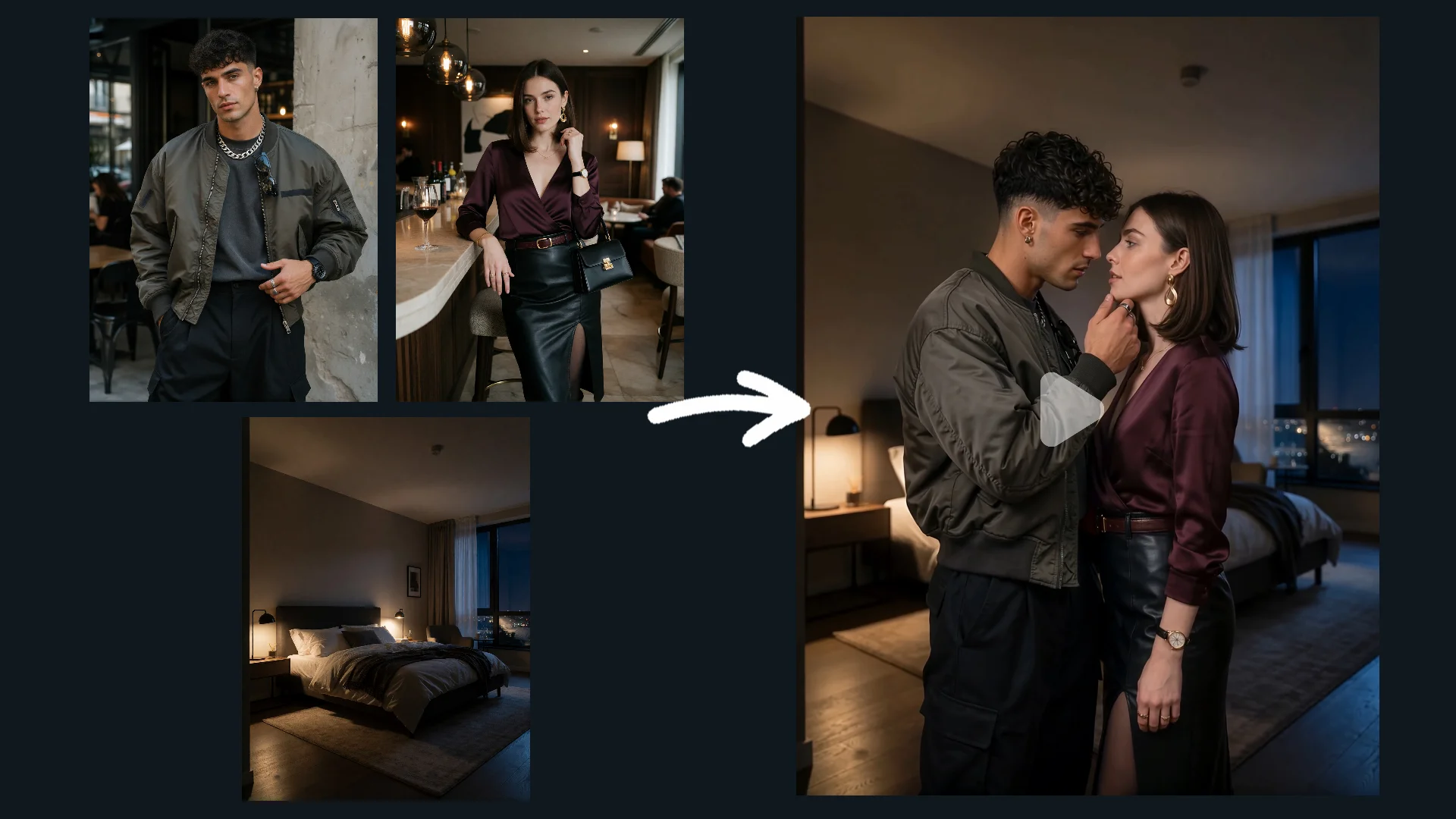
Bring Your Images to Life with AI

From a Still Image to a Moving Scene

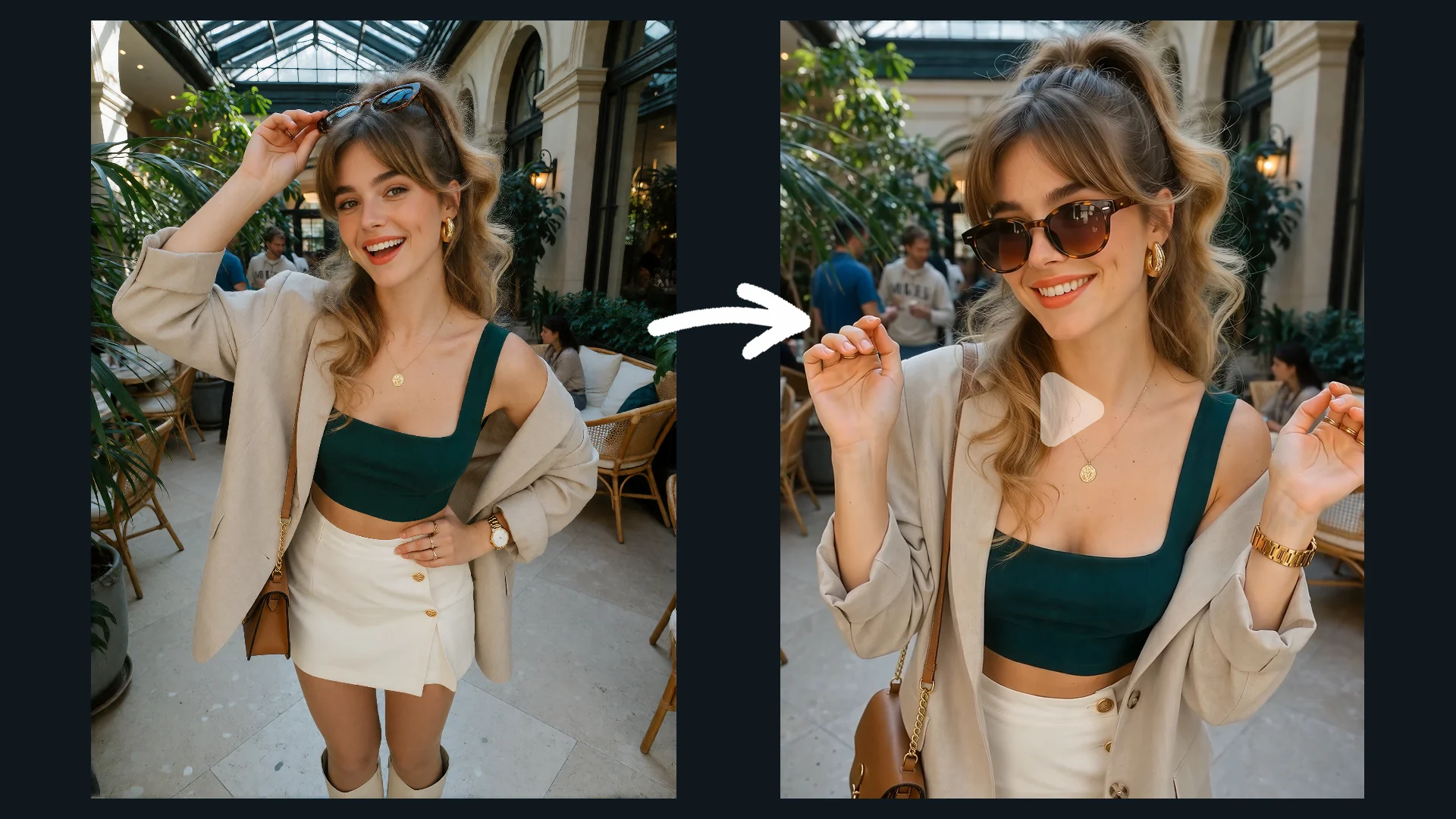
Start with an image you love, then describe the movement you want to see. Add character actions, camera direction, and atmosphere to turn a still frame into a video with a sense of motion.

Image to Video

Prompt Tips

Learn how to describe scenes, bring still images to life, and guide movement with practical prompt examples.

01

Bring a Still Image to Life

Image to Video

Image-led Beach Scene

Prompt idea

Animate the adult woman in the uploaded image while preserving the original character, bikini, and beach setting. She takes a few relaxed steps toward the shoreline as the breeze gently moves her hair. She briefly brushes her hair away from her face, looks toward the ocean, then turns back toward the camera with a warm, playful smile. Let the small waves move naturally around her feet. Use relaxed, fluid motion and a subtle camera follow. Keep the overall lighting, colors, and composition close to the source image.
02

Direct the Camera Movement

Image to Video

Coastal Tracking Shot

Prompt idea

Create a cinematic video of a sleek sports car driving along a winding coastal road at sunrise. The car moves smoothly through a gentle curve, with sunlight reflecting across its body and the ocean visible beyond the guardrail. Begin with a low side-tracking shot close to the moving car, then gradually pull back to reveal more of the coastline as the road curves ahead. Keep the car as the clear visual focus, with natural motion, realistic road contact, and warm early-morning light. Maintain a smooth, continuous camera movement throughout the shot.

Describe the Change

Identify the Subject
Name the part of the image your idea focuses on.
Describe the Movement
State what should happen to that subject and how the action unfolds.
Set the Camera Direction
Say whether the camera stays still, follows the subject, or moves through the scene.

Image to Video / Reference to Video

Choose your workflow based on how you want to guide your next video: with a text prompt, a starting image, or visual references.

Image to Video
Image to Video

Image to Video

Choose the picture at the heart of your idea, then describe what should move or change. Give the subject an action and the camera a direction.

Best for

  • Animating a still image
  • Exploring actions and camera direction
Explore Image to Video
Reference to Video
Reference to Video

Reference to Video

Guide creation with visual references. Use supported image and video references to guide the appearance, scene details, and broader visual direction of the generated video.

Best for

  • Guiding character appearance
  • Establishing scene and visual style
  • Combining supported image and video references
Explore Reference to Video

Frequently Asked Questions

What is an AI image to video generator?

An AI image to video generator turns a still image into a video. You provide an image and describe the movement or visual direction you want, and the AI generates a video based on your input.

How do I turn an image into a video?

Upload your image, describe the action or camera movement you want, adjust any available generation settings, and generate your video. You can refine your prompt and try again if the result does not match your vision.

What images work best for image to video generation?

Use a clear image with a recognizable subject, good lighting, and enough visible detail to communicate the intended scene. Images with a clear subject and room for movement can be useful starting points, depending on the action you want to create.

Can I control how the person or object moves?

You can describe the desired action in your prompt, such as walking, turning, reaching for an object, or looking toward the camera. The generated motion may vary, so specific descriptions and iterative refinement can help.

Can I control camera movement with image to video?

You can include camera directions such as a slow push-in, tracking shot, or gentle pan in your prompt. The extent to which these directions affect the result depends on the model and generation workflow.

What is the difference between Image to Video and Text to Video?

Image to Video starts with an existing image and uses it as the visual starting point for a video. Text to Video starts with a written prompt and generates a scene from that description without requiring an input image.

What is the difference between Image to Video and Reference to Video?

Image to Video animates a supplied image, using it as the starting frame or visual basis for the video. Reference to Video uses supported reference images or videos to guide the visual direction of a generated scene. The available controls and results depend on each workflow.